Student Portal

Windows Keyboard Shortcuts

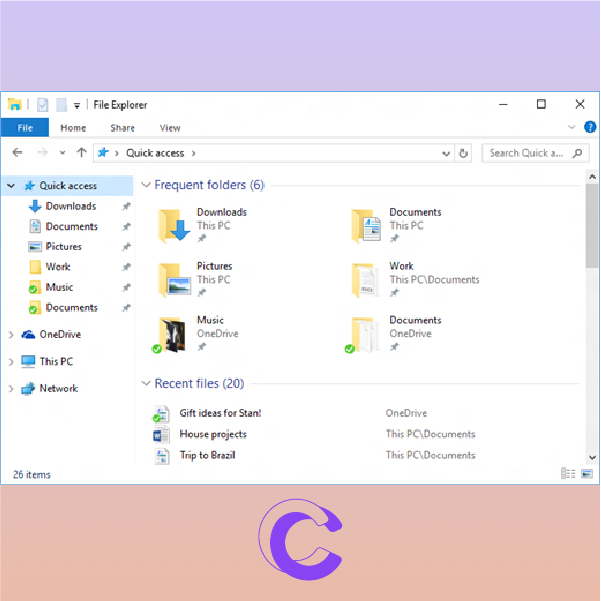
Cal Computer teaches handy shortcuts - Windows Logo Key E is for a New File Explorer Window to Open

Hold down the Windows logo key + E at the same time. This will prompt a new File Explorer Window to open.

The File Explorer window helps you quickly access the files you need.

Cal Computer teaches handy shortcuts - Windows Logo Key L is for locking your computer

Hold down the Windows logo key + L at the same time.


This will prompt your computer to lock.

Lock your computer quickly when you step away to keep your device secured.

Cal Computer teaches handy shortcuts - F11 is for Maximizing your Window

Hold down the Windows logo key + L at the same time.
This will prompt your computer to lock.

Lock your computer quickly when you step away to keep your device secured.
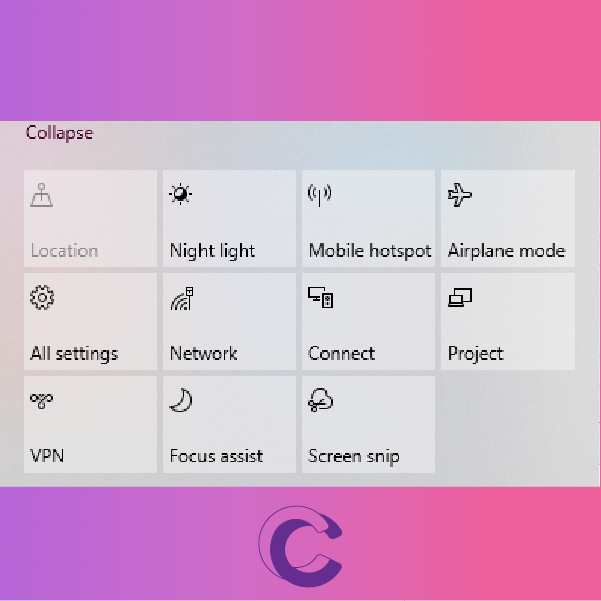
Cal Computer teaches handy shortcuts - Windows Logo Key A is for opening your quick settings

Hold down the Windows logo key + A at the same time. This will open your quick settings.

Once opened you can (usually) access the following:

  • mobile hotspot
  • airplane mode
  • all settings
  • network
  • focus assist
  • VPN
  • and more

You can also EDIT your quick settings.

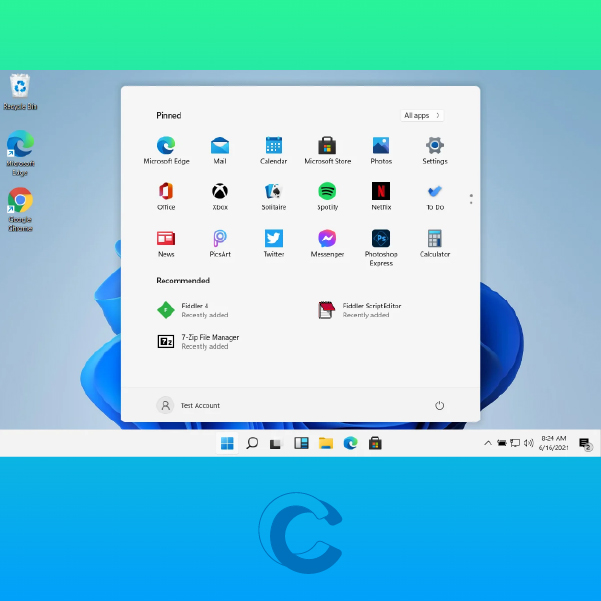
Cal Computer teaches handy shortcuts - Windows Logo Key is for opening your start menu and offer quick access to your installed programs, files and folders.

Hold down the Windows logo key.

This will open the MicrosoftWindows start menu and offer quick access to your installed programs, files, and folders.

Cal Computer teaches handy shortcuts - Windows Logo Key D will hide or display your desktop content

Hold down the ๐–๐ข๐ง๐๐จ๐ฐ๐ฌ ๐‹๐จ๐ ๐จ ๐Š๐ž๐ฒ + ๐ƒ at the same time. This will hide or display your desktop content.

This shortcut works even when you have multiple programs open; plus if you’re working with dual monitors, it’ll have the same effect.

A great shortcut when you’re working on sensitive information, you may not want others to see.

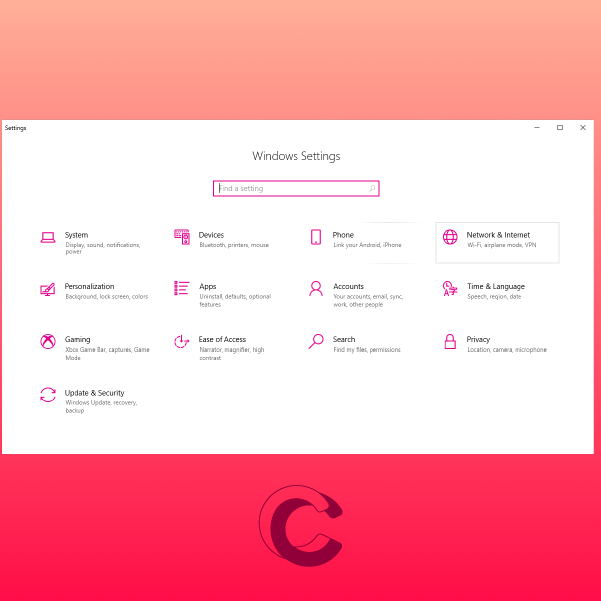
Cal Computer teaches handy shortcuts - Windows Logo Key I will prompt your Window Settings to open

Hold down the ๐–๐ข๐ง๐๐จ๐ฐ๐ฌ ๐‹๐จ๐ ๐จ ๐Š๐ž๐ฒ + ๐ˆ at the same time. This will prompt your ๐–๐ข๐ง๐๐จ๐ฐ ๐’๐ž๐ญ๐ญ๐ข๐ง๐ ๐ฌ to open. โš™๐Ÿ–ฅ๐Ÿ’ก

Once opened you can access the following:
โœจapps
โœจdevices
โœจnetwork & internet
โœจpersonalization
โœจsystem
โœจtime & language
โœจupdate & security
โœจand more

You can also enter the setting you’re looking for in the search console, located below the text ๐–๐ข๐ง๐๐จ๐ฐ ๐’๐ž๐ญ๐ญ๐ข๐ง๐ ๐ฌ.

Cal Computer teaches handy shortcuts - Windows Logo Key Shift S will prompt the built-in screen capture tool to open, usually at the top of your screen

Hold down the แดกษชษดแด…แดแดก๊œฑ สŸแดษขแด แด‹แด‡ส + ๊œฑสœษช๊œฐแด› + ๊œฑ at the same time. This will prompt the built-in screen capture tool to open, usually at the top of your screen.

Once opened, you have the following options available:
โœ‚๏ธrectangular snip
โœ‚๏ธfreeform snip
โœ‚๏ธwindow snip
โœ‚๏ธfullscreen snip
โœ‚๏ธclose snipping

Cal Computer teaches handy shortcuts - Windows Logo Key R will prompt the "RUN" dialog box to open.

Hold down the ๐™’๐™ž๐™ฃ๐™™๐™ค๐™ฌ๐™จ ๐™‡๐™ค๐™œ๐™ค ๐™†๐™š๐™ฎ + ๐™ at the same time. This will prompt the “RUN” dialog box to open. Generally, ๐™ง๐™ช๐™ฃ also describes opening a software or ๐™ง๐™ช๐™ฃ๐™ฃ๐™ž๐™ฃ๐™œ a script.

Your “RUN” dialog box will allow you to type the name of a program, folder, document, or internet resource, and Windows will open it for you.

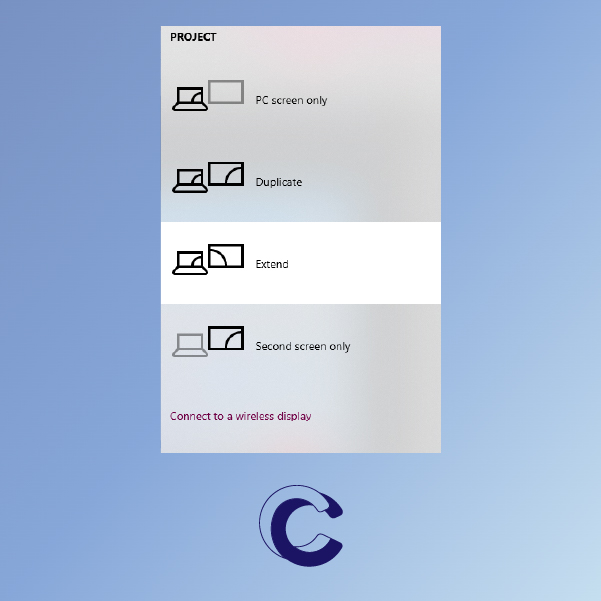
Cal Computer teaches handy shortcuts - Windows Logo Key P will prompt the Project Panel to open

Hold down the ๐–๐ข๐ง๐๐จ๐ฐ๐ฌ ๐‹๐จ๐ ๐จ ๐Š๐ž๐ฒ + ๐ at the same time. This will prompt the ๐ฉ๐ซ๐จ๐ฃ๐ž๐œ๐ญ ๐ฉ๐š๐ง๐ž๐ฅ to open. Once opened, you can search and connect to external displays or projectors.

This shortcut is very handy when you’re giving a presentation, or when you need to control multiple displays.

Cal Computer teaches handy shortcuts - Windows Logo Key Prt Scr will prompt a screenshot that will be saved in your your recent files
Hold down the ๐š†๐š’๐š—๐š๐š˜๐š ๐šœ ๐™ป๐š˜๐š๐š˜ ๐™บ๐šŽ๐šข + ๐™ฟ๐š›๐š๐š‚๐šŒ๐š›๐š— at the same time. This will prompt a screenshot that will be saved in your ๐š›๐šŽ๐šŒ๐šŽ๐š—๐š ๐š๐š’๐š•๐šŽ๐šœ. If you're working with dual monitors it'll screenshot both!

Hold down the ๐š†๐š’๐š—๐š๐š˜๐š ๐šœ ๐™ป๐š˜๐š๐š˜ ๐™บ๐šŽ๐šข + ๐™ฟ๐š›๐š๐š‚๐šŒ๐š›๐š— at the same time.

This will prompt a screenshot that will be saved in your ๐š›๐šŽ๐šŒ๐šŽ๐š—๐š ๐š๐š’๐š•๐šŽ๐šœ. If you’re working with dual monitors it’ll screenshot both!

Cal Computer teaches handy shortcuts - Windows Logo Key T will automatically highlight the first app in your taskbar

Hold down the ๐•Ž๐•š๐•Ÿ๐••๐• ๐•จ๐•ค ๐•ƒ๐• ๐•˜๐•  ๐•‚๐•–๐•ช + ๐•‹ at the same time. This will automatically highlight the first app in your taskbar.

Continue using the shortcut to cycle through your apps on your taskbar, or use the arrow key. To select the app press the enter key.

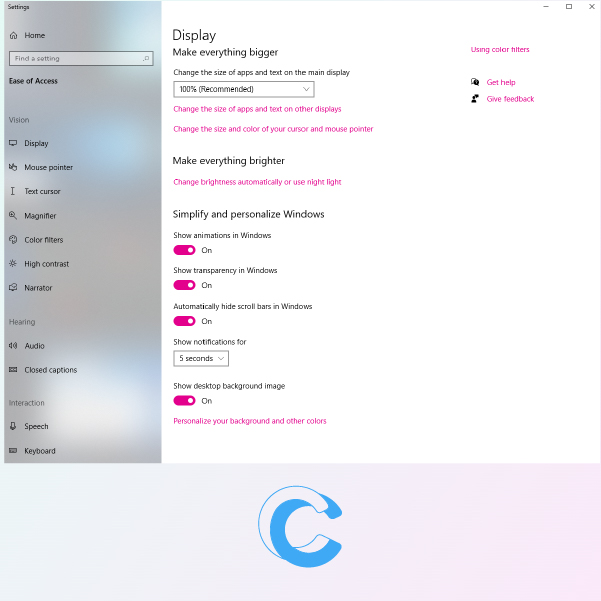
Cal Computer teaches handy shortcuts - Windows Logo Key U will open the ease of access center
Hold down the ๐—ช๐—ถ๐—ป๐—ฑ๐—ผ๐˜„๐˜€ ๐—Ÿ๐—ผ๐—ด๐—ผ ๐—ž๐—ฒ๐˜† + ๐—จ at the same time. This will prompt the ๐—ฒ๐—ฎ๐˜€๐—ฒ ๐—ผ๐—ณ ๐—ฎ๐—ฐ๐—ฐ๐—ฒ๐˜€๐˜€ ๐—ฐ๐—ฒ๐—ป๐˜๐—ฒ๐—ฟ to open.

๐—ช๐—ต๐—ฎ๐˜ ๐—ถ๐˜€ ๐—ฒ๐—ฎ๐˜€๐—ฒ ๐—ผ๐—ณ ๐—ฎ๐—ฐ๐—ฐ๐—ฒ๐˜€๐˜€ ๐—ฐ๐—ฒ๐—ป๐˜๐—ฒ๐—ฟ?
The Ease of Access Center provides a centralized location where you can adjust ๐—ฎ๐—ฐ๐—ฐ๐—ฒ๐˜€๐˜€๐—ถ๐—ฏ๐—ถ๐—น๐—ถ๐˜๐˜† settings and programs.

You will find 3 main components:
๐Ÿ‘€Vision (display, mouse pointer, text cursor, etc.)
๐Ÿ‘‚Hearing (audio and closed captions)
๐Ÿ—ฃInteraction (speech, keyboard, mouse, and eye control)

This shortcut is helpful to individuals with disabilities, or if you need to adjust your display settings.

Hold down the ๐—ช๐—ถ๐—ป๐—ฑ๐—ผ๐˜„๐˜€ ๐—Ÿ๐—ผ๐—ด๐—ผ ๐—ž๐—ฒ๐˜† + ๐—จ at the same time. This will prompt the ๐—ฒ๐—ฎ๐˜€๐—ฒ ๐—ผ๐—ณ ๐—ฎ๐—ฐ๐—ฐ๐—ฒ๐˜€๐˜€ ๐—ฐ๐—ฒ๐—ป๐˜๐—ฒ๐—ฟ to open.

๐—ช๐—ต๐—ฎ๐˜ ๐—ถ๐˜€ ๐—ฒ๐—ฎ๐˜€๐—ฒ ๐—ผ๐—ณ ๐—ฎ๐—ฐ๐—ฐ๐—ฒ๐˜€๐˜€ ๐—ฐ๐—ฒ๐—ป๐˜๐—ฒ๐—ฟ?
The Ease of Access Center provides a centralized location where you can adjust ๐—ฎ๐—ฐ๐—ฐ๐—ฒ๐˜€๐˜€๐—ถ๐—ฏ๐—ถ๐—น๐—ถ๐˜๐˜† settings and programs.

You will find 3 main components:
๐Ÿ‘€Vision (display, mouse pointer, text cursor, etc.)
๐Ÿ‘‚Hearing (audio and closed captions)
๐Ÿ—ฃInteraction (speech, keyboard, mouse, and eye control)

This shortcut is helpful to individuals with disabilities, or if you need to adjust your display settings.

Cal Computer teaches handy shortcuts - Windows Logo Key U will open the ease of access center

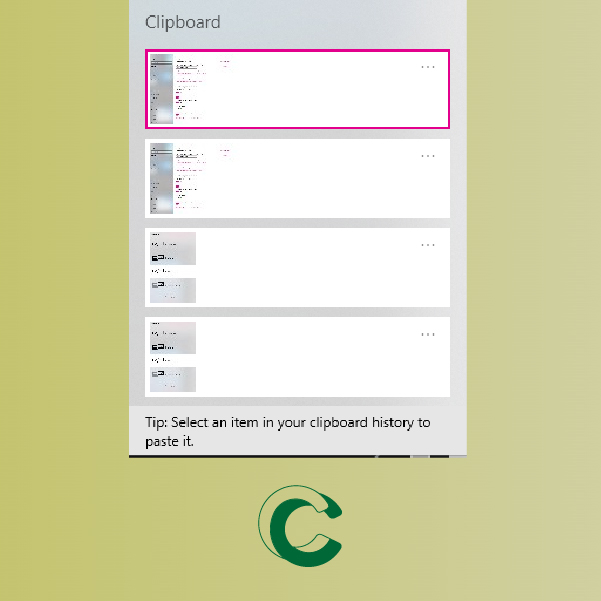
So, you already know CTRL + V allows you to paste the last item from your clipboard. But did you know that ๐™’๐™ž๐™ฃ๐™™๐™ค๐™ฌ๐™จ ๐™‡๐™ค๐™œ๐™ค ๐™†๐™š๐™ฎ + ๐™‘ allows you to open your clipboard history?

Hold down the ๐™’๐™ž๐™ฃ๐™™๐™ค๐™ฌ๐™จ ๐™‡๐™ค๐™œ๐™ค ๐™†๐™š๐™ฎ + ๐™‘ at the same time. This will prompt your clipboard history to open. Note, you ๐™ข๐™ช๐™จ๐™ฉ have this feature turned on.

To turn on this feature:
1๏ธโƒฃ Go to Start
2๏ธโƒฃ Select Settings โš™๏ธ
3๏ธโƒฃ Click on System ๐Ÿ’ป
4๏ธโƒฃ Pick Clipboard ๐Ÿ“‘
5๏ธโƒฃ Turn on Clipboard History ๐ŸŽ‰

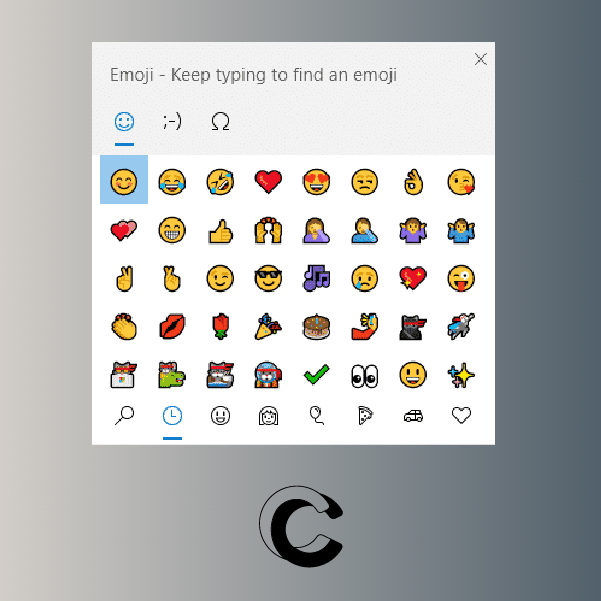
Cal Computer teaches handy shortcuts - Windows Logo Key . or ; will open the emoji panel

Hold down the ๐—ช๐—ถ๐—ป๐—ฑ๐—ผ๐˜„๐˜€ ๐—Ÿ๐—ผ๐—ด๐—ผ ๐—ž๐—ฒ๐˜† + period(.) or semicolon(;) at the same time. This will prompt the emoji panel to open.

Cal Computer teaches handy shortcuts - Windows Logo Key . or ; will open the emoji panel

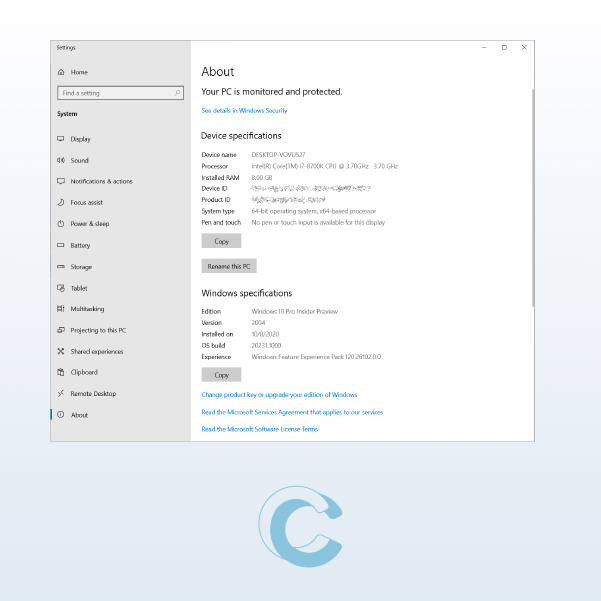
Hold down the ๐–๐ข๐ง๐๐จ๐ฐ๐ฌ ๐‹๐จ๐ ๐จ ๐Š๐ž๐ฒ + ๐๐š๐ฎ๐ฌ๐ž at the same time. This will prompt ๐š๐›๐จ๐ฎ๐ญ to open. Once opened, you can easily identify your system properties like your computers name, processor info, RAM, etc.

This shortcut is very handy when you need to identify your PC’s properties.ย