
Your cart is currently empty!
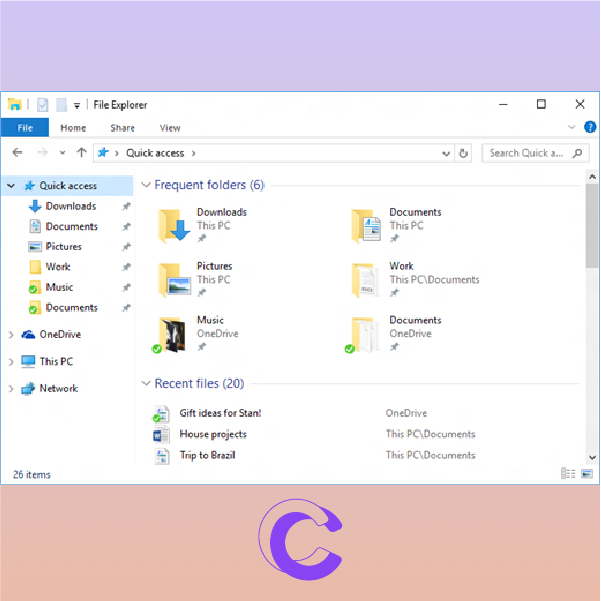
Hold down the Windows logo key + E at the same time. This will prompt a new File Explorer Window to open.
The File Explorer window helps you quickly access the files you need.

Hold down the Windows logo key + L at the same time.
This will prompt your computer to lock.
Lock your computer quickly when you step away to keep your device secured.

Hold down the Windows logo key + L at the same time.
This will prompt your computer to lock.
Lock your computer quickly when you step away to keep your device secured.
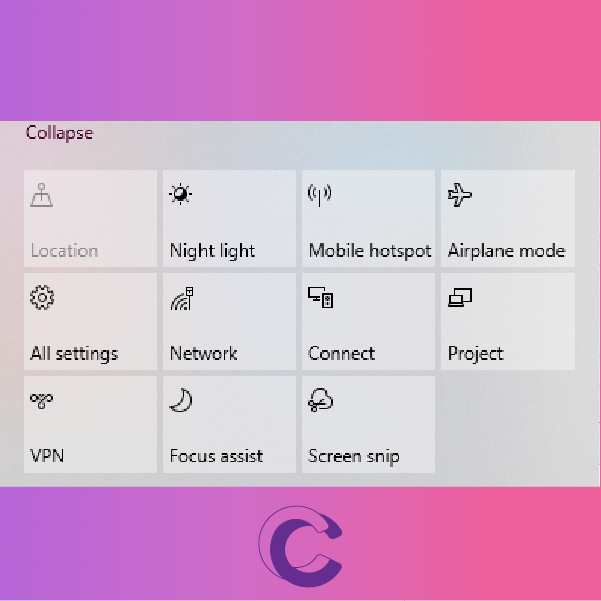
Hold down the Windows logo key + A at the same time. This will open your quick settings.
Once opened you can (usually) access the following:
- mobile hotspot
- airplane mode
- all settings
- network
- focus assist
- VPN
- and more
You can also EDIT your quick settings.

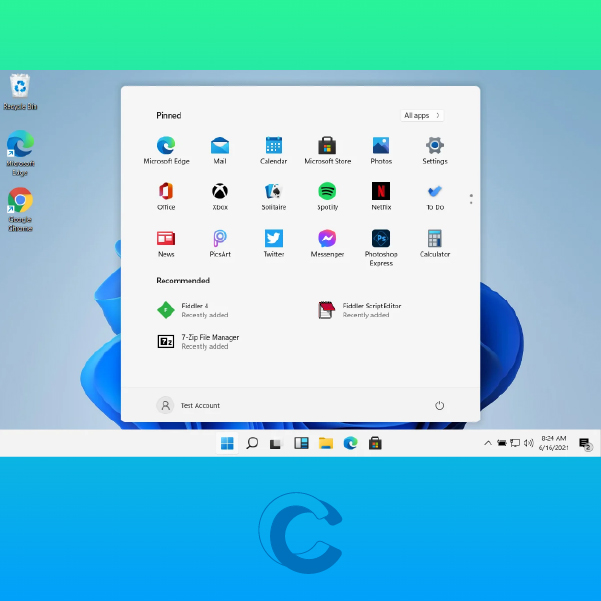
Hold down the Windows logo key.
This will open the MicrosoftWindows start menu and offer quick access to your installed programs, files, and folders.


Hold down the 𝐖𝐢𝐧𝐝𝐨𝐰𝐬 𝐋𝐨𝐠𝐨 𝐊𝐞𝐲 + 𝐃 at the same time. This will hide or display your desktop content.
This shortcut works even when you have multiple programs open; plus if you’re working with dual monitors, it’ll have the same effect.
A great shortcut when you’re working on sensitive information, you may not want others to see.
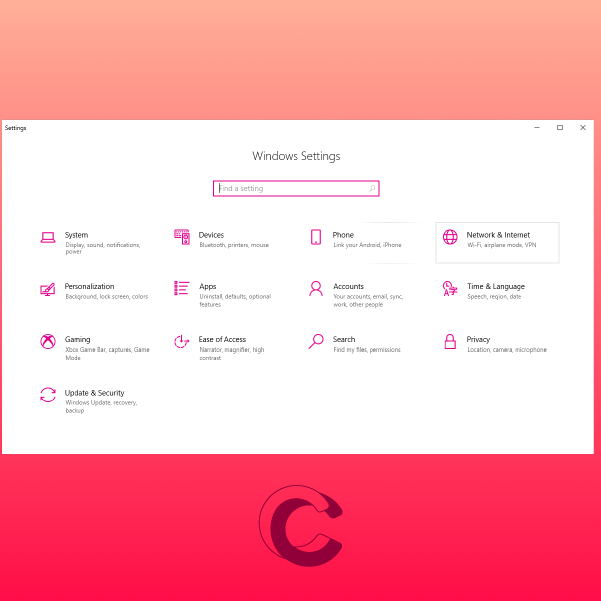
Hold down the 𝐖𝐢𝐧𝐝𝐨𝐰𝐬 𝐋𝐨𝐠𝐨 𝐊𝐞𝐲 + 𝐈 at the same time. This will prompt your 𝐖𝐢𝐧𝐝𝐨𝐰 𝐒𝐞𝐭𝐭𝐢𝐧𝐠𝐬 to open. ⚙🖥💡
Once opened you can access the following:
✨apps
✨devices
✨network & internet
✨personalization
✨system
✨time & language
✨update & security
✨and more
You can also enter the setting you’re looking for in the search console, located below the text 𝐖𝐢𝐧𝐝𝐨𝐰 𝐒𝐞𝐭𝐭𝐢𝐧𝐠𝐬.


Hold down the ᴡɪɴᴅᴏᴡꜱ ʟᴏɢᴏ ᴋᴇʏ + ꜱʜɪꜰᴛ + ꜱ at the same time. This will prompt the built-in screen capture tool to open, usually at the top of your screen.
Once opened, you have the following options available:
✂️rectangular snip
✂️freeform snip
✂️window snip
✂️fullscreen snip
✂️close snipping

Hold down the 𝙒𝙞𝙣𝙙𝙤𝙬𝙨 𝙇𝙤𝙜𝙤 𝙆𝙚𝙮 + 𝙍 at the same time. This will prompt the “RUN” dialog box to open. Generally, 𝙧𝙪𝙣 also describes opening a software or 𝙧𝙪𝙣𝙣𝙞𝙣𝙜 a script.
Your “RUN” dialog box will allow you to type the name of a program, folder, document, or internet resource, and Windows will open it for you.

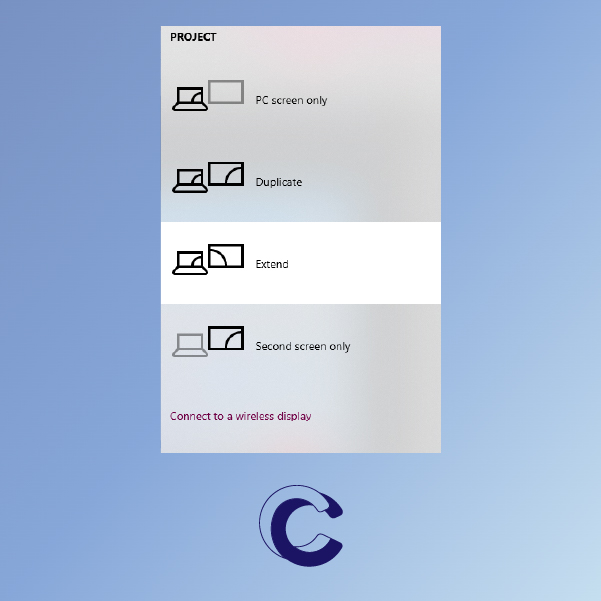
Hold down the 𝐖𝐢𝐧𝐝𝐨𝐰𝐬 𝐋𝐨𝐠𝐨 𝐊𝐞𝐲 + 𝐏 at the same time. This will prompt the 𝐩𝐫𝐨𝐣𝐞𝐜𝐭 𝐩𝐚𝐧𝐞𝐥 to open. Once opened, you can search and connect to external displays or projectors.
This shortcut is very handy when you’re giving a presentation, or when you need to control multiple displays.

Hold down the 𝚆𝚒𝚗𝚍𝚘𝚠𝚜 𝙻𝚘𝚐𝚘 𝙺𝚎𝚢 + 𝙿𝚛𝚝𝚂𝚌𝚛𝚗 at the same time.
This will prompt a screenshot that will be saved in your 𝚛𝚎𝚌𝚎𝚗𝚝 𝚏𝚒𝚕𝚎𝚜. If you’re working with dual monitors it’ll screenshot both!


Hold down the 𝕎𝕚𝕟𝕕𝕠𝕨𝕤 𝕃𝕠𝕘𝕠 𝕂𝕖𝕪 + 𝕋 at the same time. This will automatically highlight the first app in your taskbar.
Continue using the shortcut to cycle through your apps on your taskbar, or use the arrow key. To select the app press the enter key.

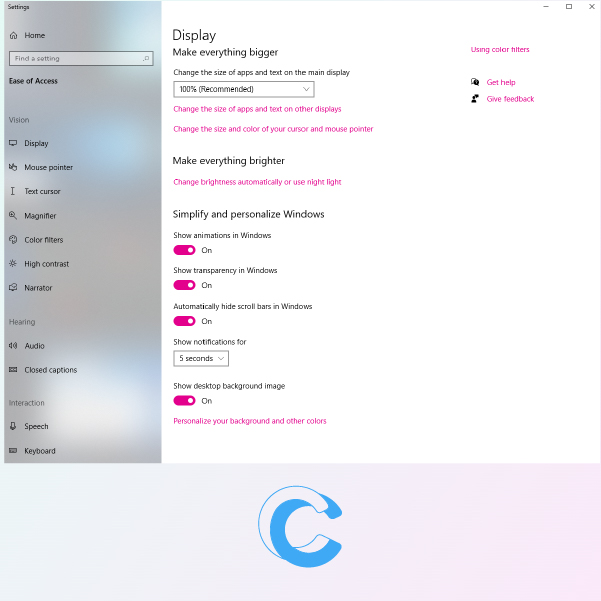
Hold down the 𝗪𝗶𝗻𝗱𝗼𝘄𝘀 𝗟𝗼𝗴𝗼 𝗞𝗲𝘆 + 𝗨 at the same time. This will prompt the 𝗲𝗮𝘀𝗲 𝗼𝗳 𝗮𝗰𝗰𝗲𝘀𝘀 𝗰𝗲𝗻𝘁𝗲𝗿 to open.
𝗪𝗵𝗮𝘁 𝗶𝘀 𝗲𝗮𝘀𝗲 𝗼𝗳 𝗮𝗰𝗰𝗲𝘀𝘀 𝗰𝗲𝗻𝘁𝗲𝗿?
The Ease of Access Center provides a centralized location where you can adjust 𝗮𝗰𝗰𝗲𝘀𝘀𝗶𝗯𝗶𝗹𝗶𝘁𝘆 settings and programs.
You will find 3 main components:
👀Vision (display, mouse pointer, text cursor, etc.)
👂Hearing (audio and closed captions)
🗣Interaction (speech, keyboard, mouse, and eye control)
This shortcut is helpful to individuals with disabilities, or if you need to adjust your display settings.

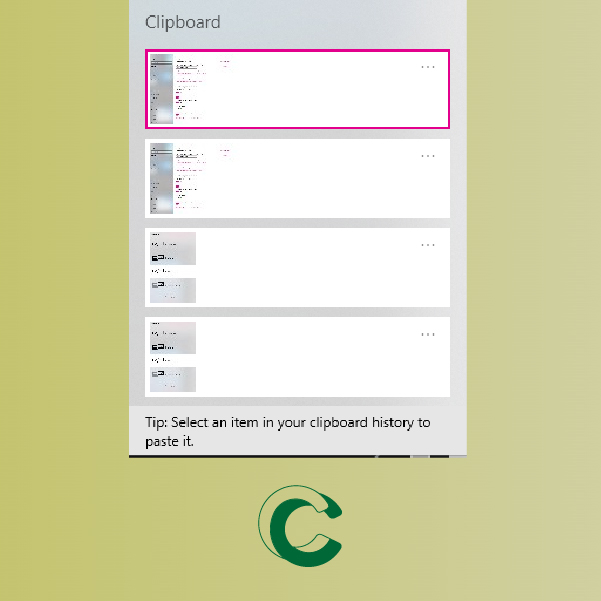
So, you already know CTRL + V allows you to paste the last item from your clipboard. But did you know that 𝙒𝙞𝙣𝙙𝙤𝙬𝙨 𝙇𝙤𝙜𝙤 𝙆𝙚𝙮 + 𝙑 allows you to open your clipboard history?
Hold down the 𝙒𝙞𝙣𝙙𝙤𝙬𝙨 𝙇𝙤𝙜𝙤 𝙆𝙚𝙮 + 𝙑 at the same time. This will prompt your clipboard history to open. Note, you 𝙢𝙪𝙨𝙩 have this feature turned on.
To turn on this feature:
1️⃣ Go to Start
2️⃣ Select Settings ⚙️
3️⃣ Click on System 💻
4️⃣ Pick Clipboard 📑
5️⃣ Turn on Clipboard History 🎉
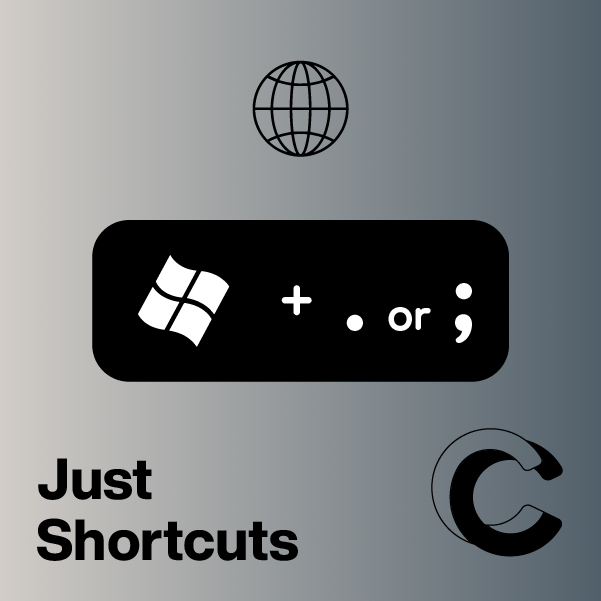
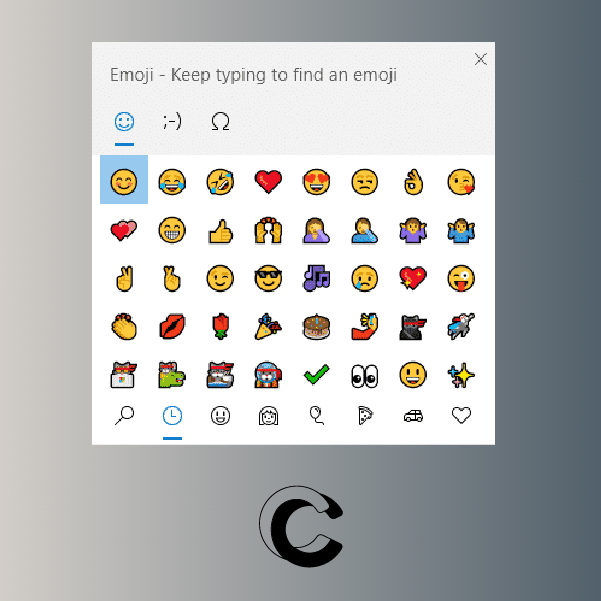
Hold down the 𝗪𝗶𝗻𝗱𝗼𝘄𝘀 𝗟𝗼𝗴𝗼 𝗞𝗲𝘆 + period(.) or semicolon(;) at the same time. This will prompt the emoji panel to open.
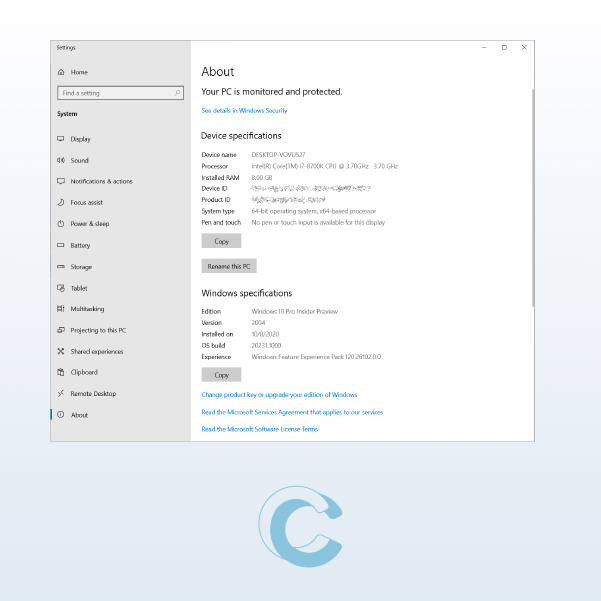
Hold down the 𝐖𝐢𝐧𝐝𝐨𝐰𝐬 𝐋𝐨𝐠𝐨 𝐊𝐞𝐲 + 𝐏𝐚𝐮𝐬𝐞 at the same time. This will prompt 𝐚𝐛𝐨𝐮𝐭 to open. Once opened, you can easily identify your system properties like your computers name, processor info, RAM, etc.
This shortcut is very handy when you need to identify your PC’s properties.